Chapter 4 of 8
GIS Software
Desktop, web, and server GIS, plus a hands-on tour of the essentials.
With so many GIS products on the market, how do you even begin to choose? The first thing you'll notice is that you aren't short of options. So which one is best?
There is no answer.
Think of GIS software like tools in a toolbox: you wouldn't use a screwdriver to bang in a nail. GIS solutions often involve a software stack: several tools used in unison. A common pattern is to create and edit your data in a desktop GIS, then upload the finished result to a web GIS to share it around your organisation.
Which tool for which job?
The most useful way to choose isn't "which product is best?" but "what am I actually trying to do?" Match the job to the category, and the shortlist gets short fast:
| Your job | Tool category | Examples |
|---|---|---|
| Learn GIS and analyse data deeply | Desktop GIS | QGIS, ArcGIS Pro |
| Publish maps for non-technical users | Web / SaaS GIS | Mango, Felt, ArcGIS Online, Carto |
| Design custom basemaps or map styles | Map design tools | Mapbox Studio, MapTiler |
| Store and query spatial data | Spatial database | PostGIS |
| Collect data in the field | Mobile GIS | QField, Mergin Maps / Input, ArcGIS Field Maps, Survey123 |
| Build custom web maps | Developer libraries | MapLibre, Leaflet, OpenLayers |
| Analyse data with code | Data science tools | Python (GeoPandas), R (sf) |
Where Mango fits: Mango sits firmly in the "publish and share GIS data with non-technical users" row. It isn't trying to replace every desktop analysis tool; it's for turning spatial data into usable, interactive web maps that other people can open without any GIS software of their own.
Types of GIS software
Choosing the right tool comes down to understanding the problem you're solving. Most GIS software falls into one of four categories.
Desktop GIS
Desktop GIS platforms are the Swiss Army knives of GIS: creating, editing, visualising, managing, and analysing geographic data.
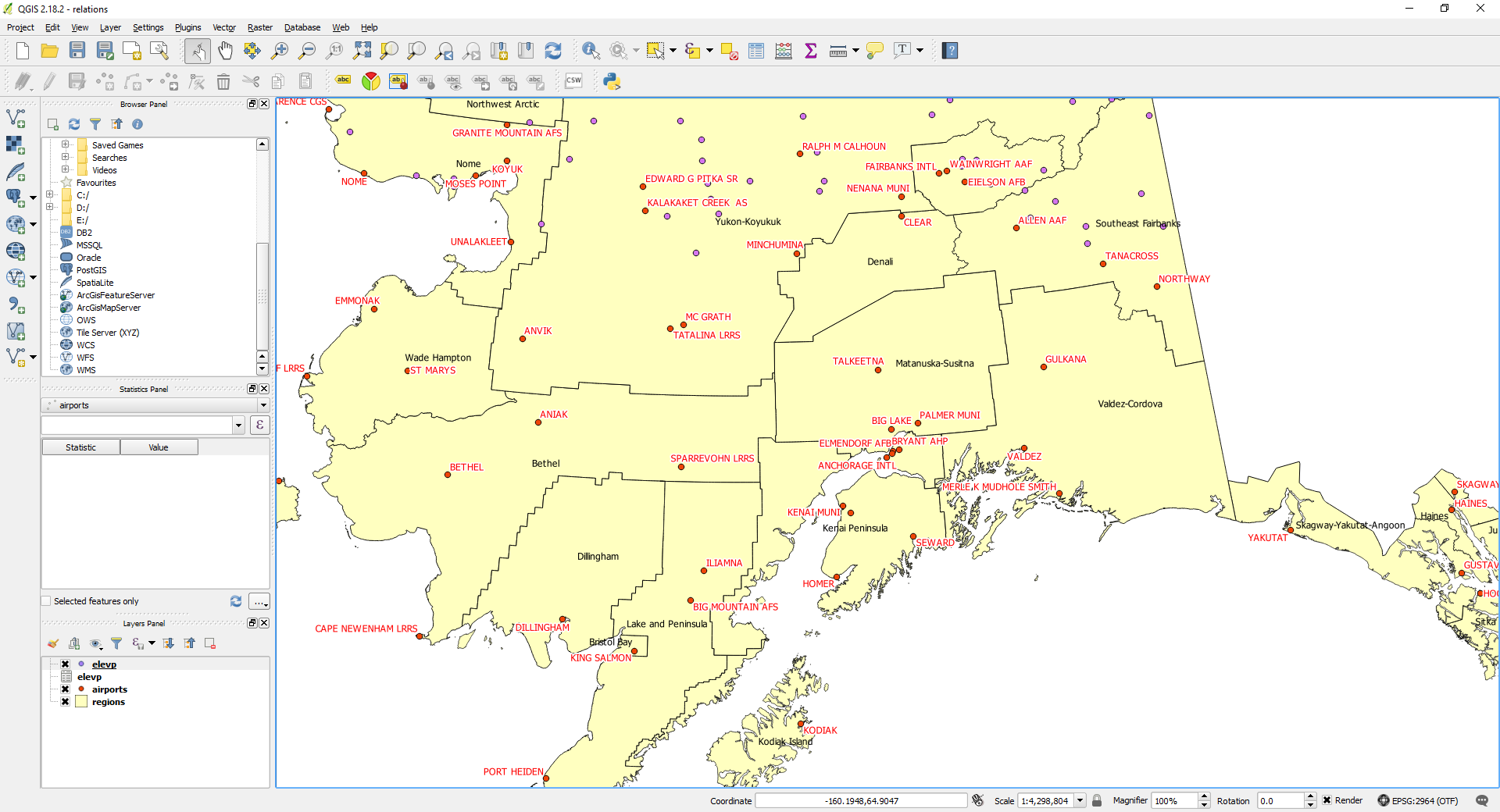
Like Photoshop or Excel, most people pick up the basics quickly, but true mastery takes years. The best way to learn is problem-first: rather than learning everything the software can do, start with the parts that solve your problems. For most beginners those are: making visualisations (category/quantity/heat maps), running queries, joining spreadsheets to map data, geocoding addresses, and editing feature geometry and attributes.
Web GIS
As with every kind of information, the internet has transformed GIS.

Before web GIS, getting an answer to a location question meant asking the GIS team to prepare a map, then walking over to a workstation to view it or collect a printout. Modern, easy-to-use web GIS lets non-experts interact with maps and answer their own questions, from anywhere, any time, on any device.
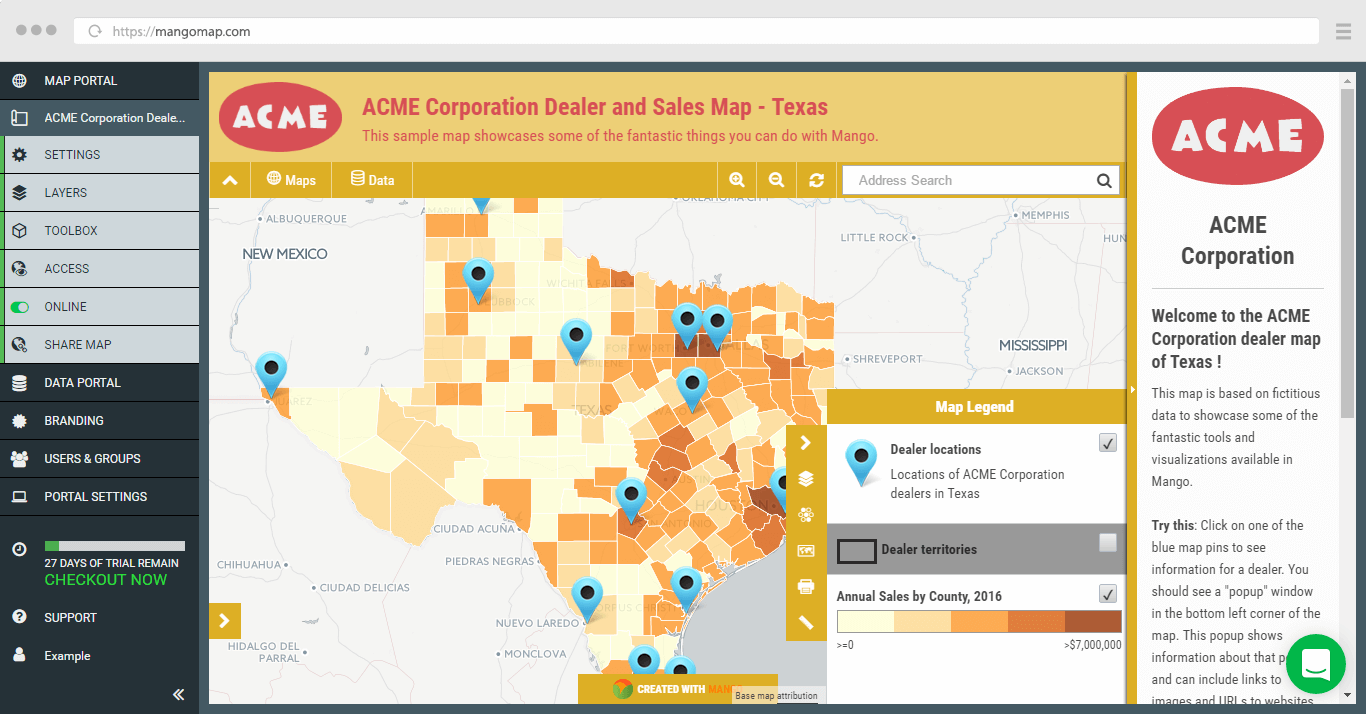
Web GIS used to be expensive to build and run, needing programmers, servers, and sysadmins. Cloud services like Mango removed those barriers: now a data-rich web map can be built with a point-and-click interface, in minutes, using nothing but a browser. The next chapter is devoted entirely to web GIS.
Mobile GIS
For a lot of people, collecting data in the field is their very first real GIS task. Mobile GIS apps turn a phone or tablet into a data-collection tool, syncing what you capture back to a central map. Typical jobs include:
- Inspecting assets (signs, hydrants, streetlights)
- Collecting survey points in the field
- Recording photos and notes against a location
- Updating boundaries or site conditions on the spot
Common tools here include QField, Mergin Maps / Input, ArcGIS Field Maps, and Survey123.
Server GIS
If web GIS has the lowest barrier to entry, server GIS has the highest, with by far the steepest learning curve.
As a beginner you won't need to worry about server GIS; it's generally reserved for large-scale efforts and niche tasks. The most common example is a spatial database, used instead of the file formats we met earlier when a dataset is huge, or when many people need to read and edit it at once from different places.
The name you'll hear most is PostGIS, a widely used, open-source spatial extension for the PostgreSQL database. It lets a team ask location questions directly in the database, such as "which properties fall inside this flood zone?", without opening a desktop GIS at all. You don't need it to start, but it's good to know what people mean when they mention it.
Specialised GIS
Also not something to worry about early on. These products do very specialised jobs; two examples show how diverse the sector is. Image classification turns spectral imagery of the earth (visible light, infra-red, and more) into meaningful classes like land-use types. Lidar captures the world as a dense "point cloud" (thousands of points per square metre) that takes serious processing to turn into usable models.
The same goes for drone and UAV mapping, satellite imagery and remote sensing, AI and machine learning for imagery, routing and network analysis, and 3D and terrain work. File these under "where GIS can go next" once you've found your feet; none of them belong on the beginner path.
Getting started with desktop GIS
As a beginner, your choice of desktop GIS won't be driven by functionality; they all share the same core, and it's more than enough to start. So let's look at what they have in common.
Adding layers
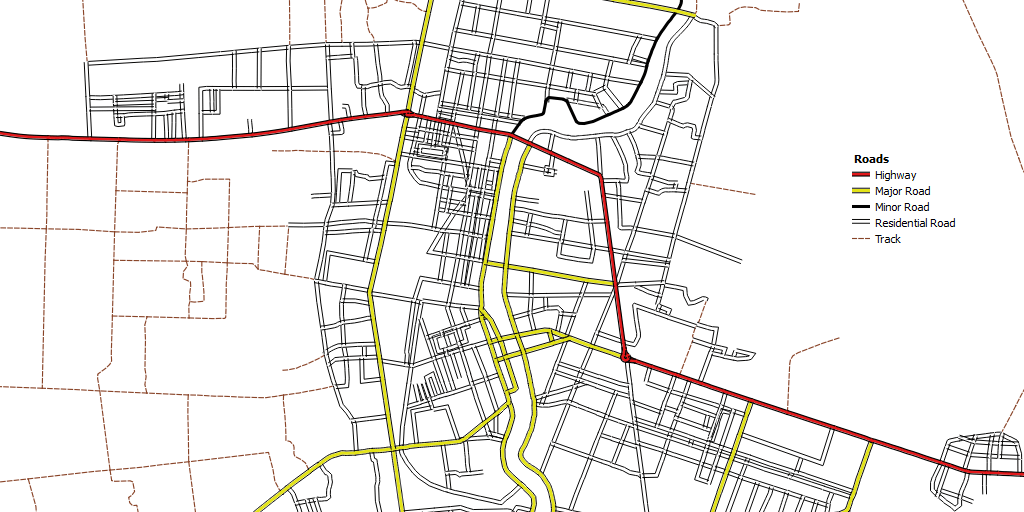
Most maps are several layers stacked on top of each other. The legend lists each layer with a checkbox to show/hide it, plus a graphic showing what its colours, fills, and strokes mean.
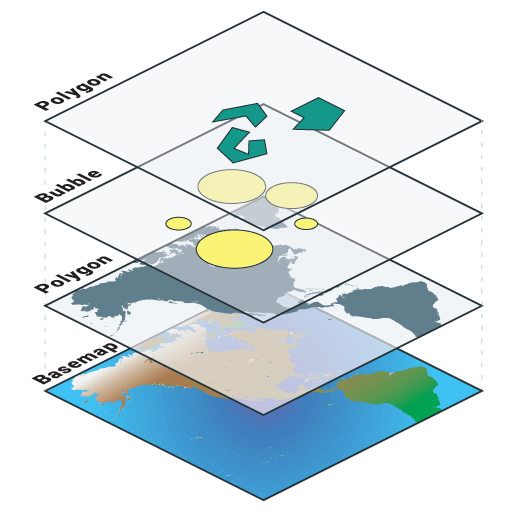
Layers can use different datasets, or even the same dataset. If your data has columns for this year's and last year's sales, you can make a layer for each, stack them, and toggle the top one on and off to compare at a glance.
Styling layers
Desktop GIS gives you fine-grained control over appearance. Beyond the category and quantity class breaks we covered earlier, you can style three things (stroke for lines and outlines, fill for the inside of polygons or points, and labels) and drive any of them from attribute data.
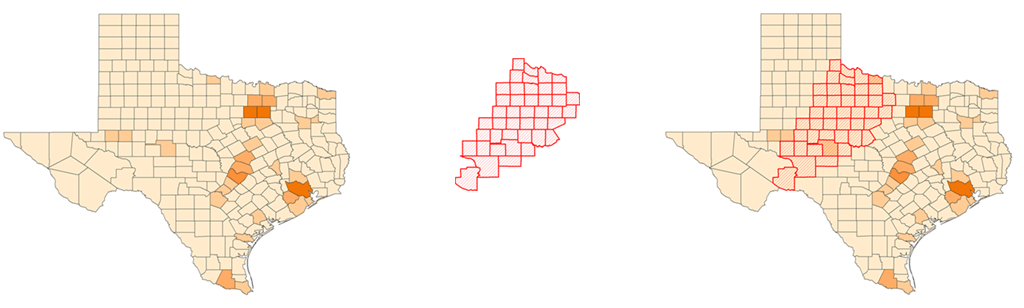
Fills are especially handy for showing two things at once. Picture a quantity layer of sales by county, plus a second layer that shows only your target counties with a cross-hatched fill, and now you can see sales and targets together, no toggling required.
Labels
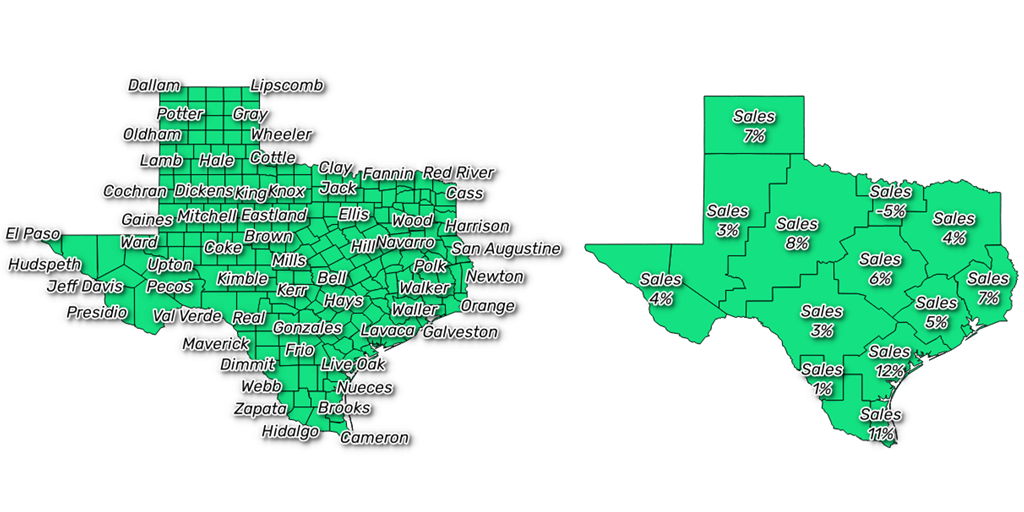
Points, lines, and polygons can all be labelled from one or more of their attributes, with control over font, size, fill, and outline. The main thing is legibility: labels need to stand out from the map.
Selection sets
A selection set is a subset of features within a layer, used to visualise a group or to run bulk operations (aggregate, edit, delete). Selected features are highlighted on the map. You can build one by:
- Clicking features on the map, or
- Selecting rows in the layer's table view (the same data shown as a spreadsheet), or
- An attribute query, e.g.
sales > 1,000,000ortype IS 'highway'.
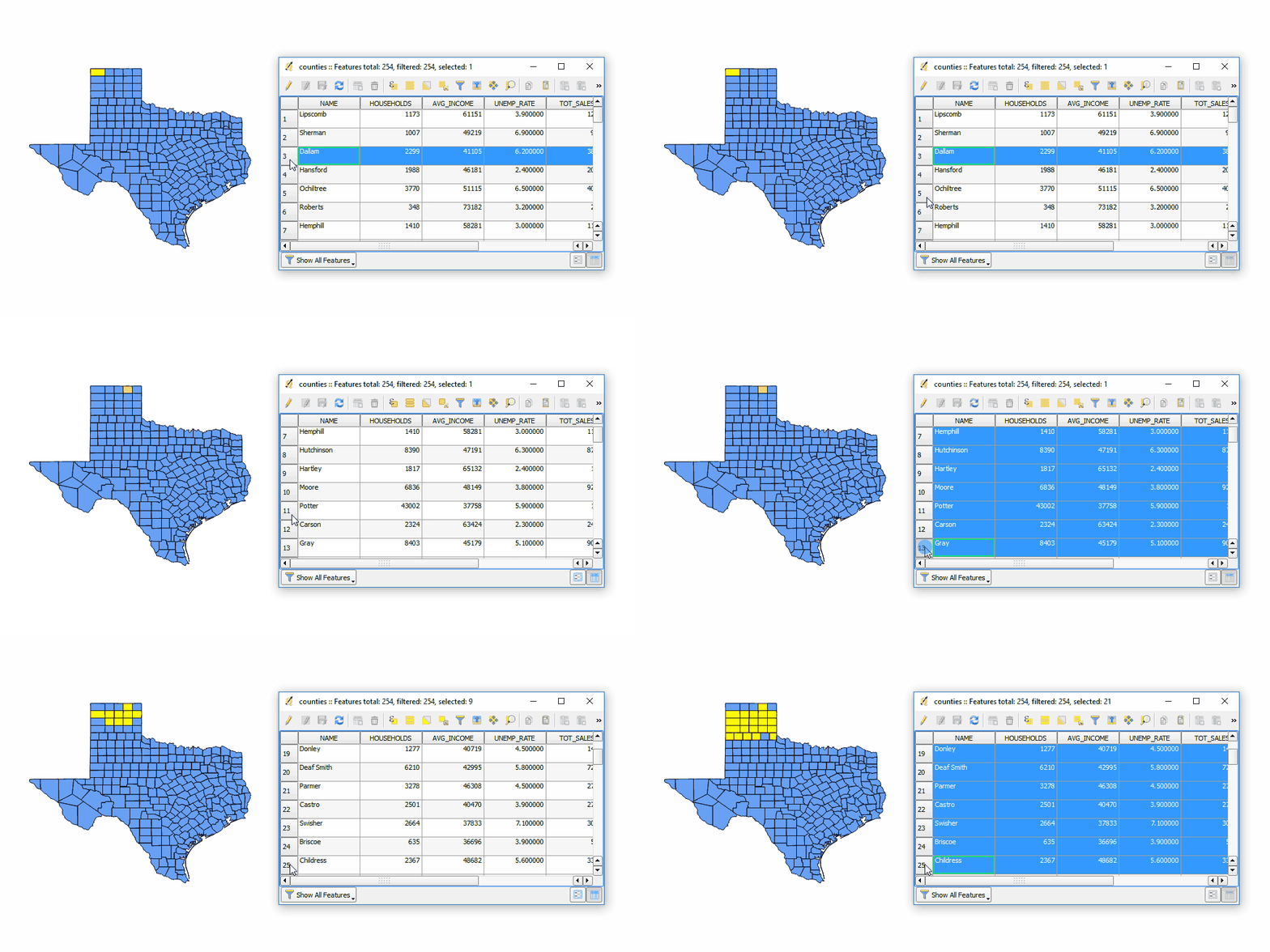
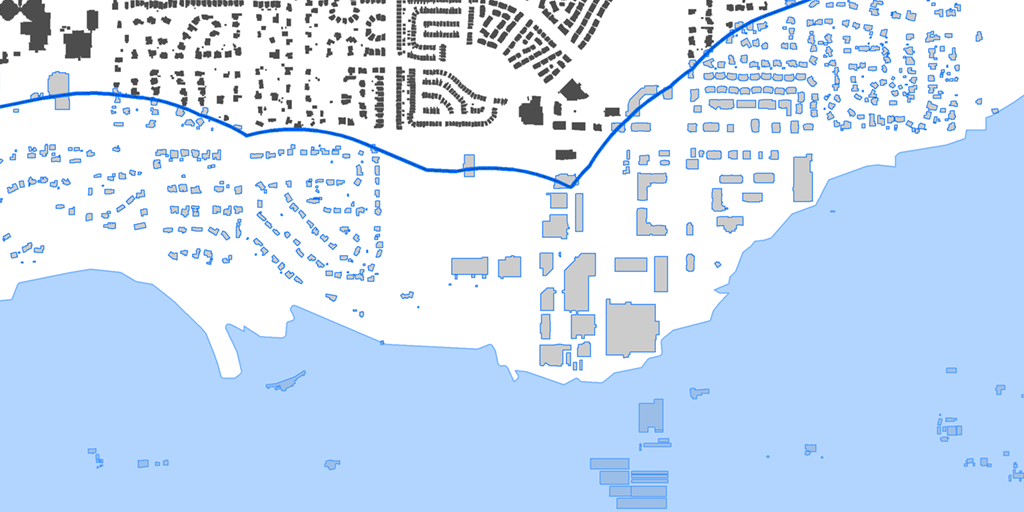
Once you have a selection you can extract it to a new dataset, delete it, aggregate it into a report, bulk-edit its attributes, print it, or export it to a spreadsheet.
Editing and managing data
Uploading data is only the start: a GIS is also where you create and maintain it. Editing attributes works like a spreadsheet (edit cells, add columns, apply formulas). Unlike a spreadsheet, a GIS also edits geometry: drag a point to move it, or drag a line/polygon's vertices to reshape it.

You can also split and merge features: merge by selecting adjoining features and pressing a button, split by drawing a line through one.
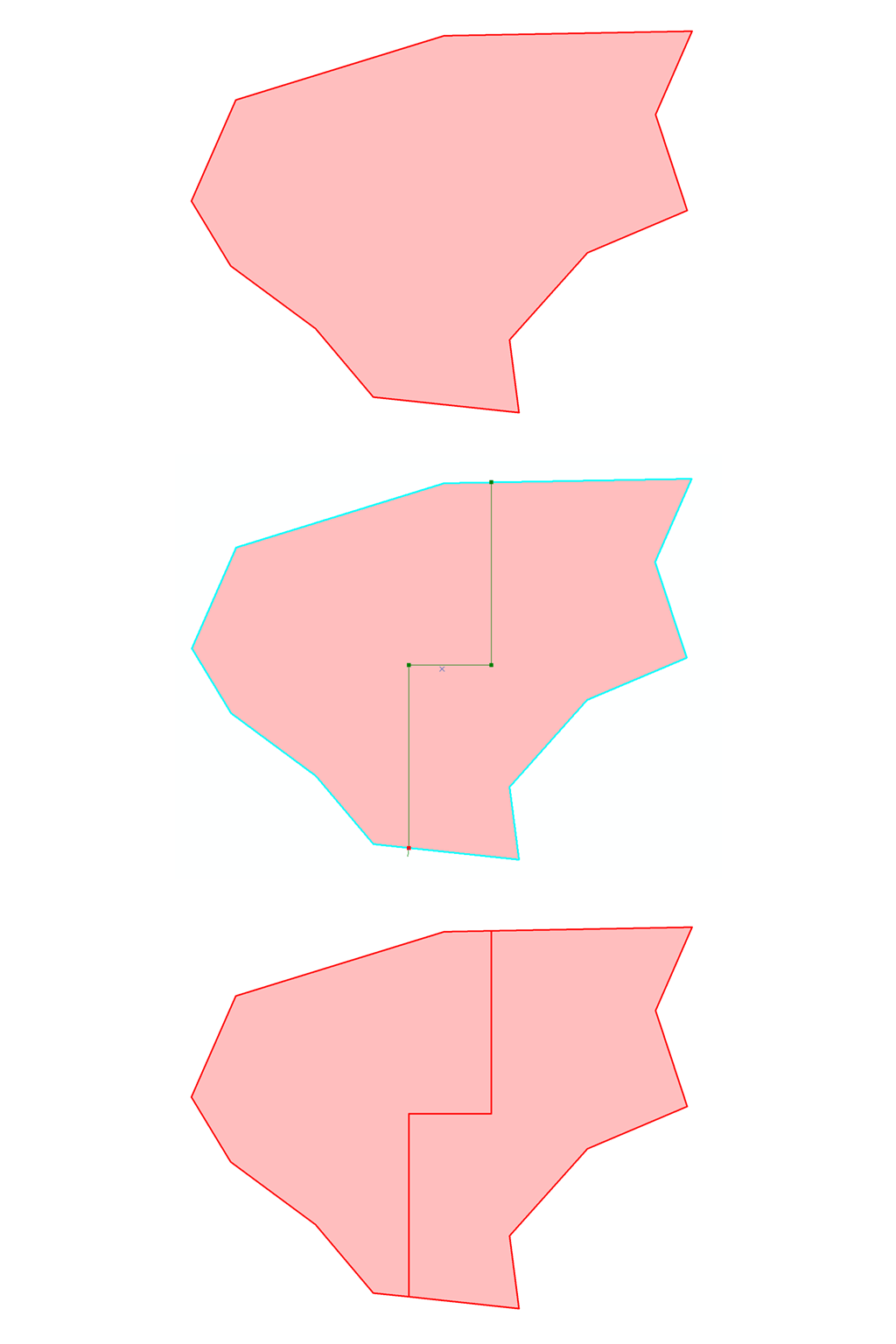
To create features from scratch you usually trace over a reference like satellite imagery (a process called digitisation), then fill in the attributes via an on-screen form. You can also bring in geometry from a GPS track (typically a GPX file).
The popular desktop GIS
By far the two most-used desktop programs are ArcGIS and QGIS. They offer similar functionality but differ sharply in how they're distributed and the ecosystems around them.
ArcGIS
ArcGIS is made by Esri, the long-standing market leader, and its desktop product is the best-known GIS of all. It's usually bought through a local distributor; a basic licence runs into four figures, with extra modules and a maintenance contract (for updates) on top. Support comes from Esri or its distributors, in tiers with different response times. It's Windows only, with no Mac or Linux version.
QGIS

Formerly Quantum GIS, QGIS is a free, open-source desktop GIS that's been around since 2002. It's hugely popular, with a large user base and an active community, and because it's open source it's free to download and use without restriction, and always will be. It also runs on Windows, Mac, and Linux. Support comes from the community, with commercial support packages available from various providers.
QGIS is a great starting point for new GIS users, especially once price is factored in, though it's not the only one, and the best tool always depends on the job (see the table at the top of this chapter). At Mango we're QGIS users, and we happily recommend it as a first stop for anyone getting into desktop GIS.
With the essentials of desktop GIS covered, it's time for the part the internet changed most: sharing your maps with the world.
Ready to make your first map?
Everything in this guide, put to work: upload your data and publish an interactive map in an afternoon. No credit card required.