Chapter 2 of 8
GIS Mapping
The common map types (category, quantity, heatmap) and how data-driven styling works.
A GIS has one job: to let you quickly and easily answer questions about your data that relate to location. The most common way it does that is by producing a map, a visualisation that communicates something you might not spot in the raw data alone.
Let's look at some common examples.
Map types
The category map
The most common type of GIS map, and in many ways the simplest, is the category map. It shows which category each location belongs to. The example below shows sales territories coloured by dealer; a glance at the legend tells you whose territory is whose.
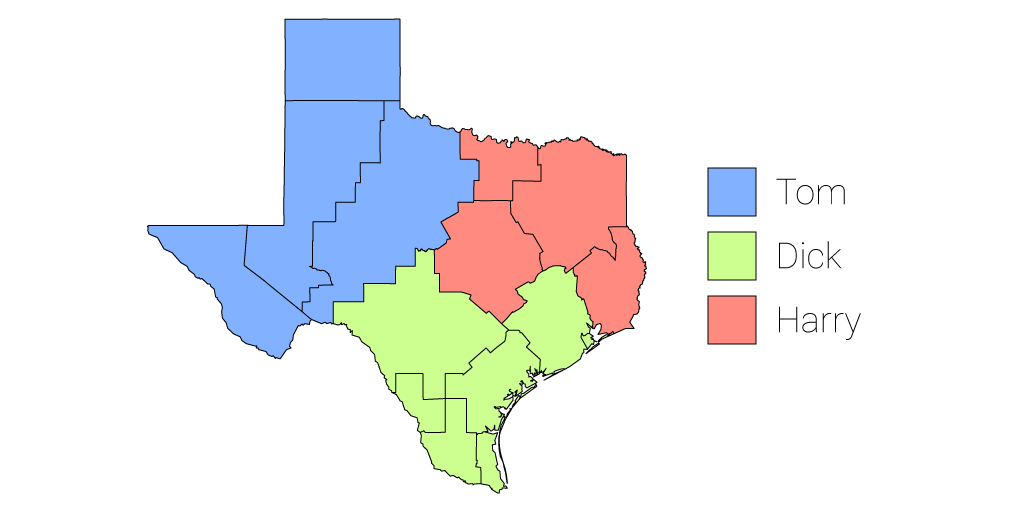
A common misconception for newcomers is that a map like this is made the way a graphic designer works, drawing the outlines and then clicking each area to colour it in. To an extent that's what's happening, except the GIS does the work. A GIS is data-driven: we write rules that dictate the colour or appearance of each feature on the map.
The rules (called "styles" in GIS speak) are based on data. Picture your data as a spreadsheet:
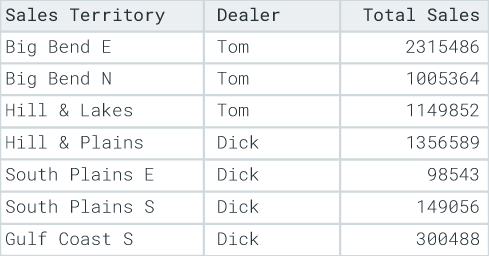
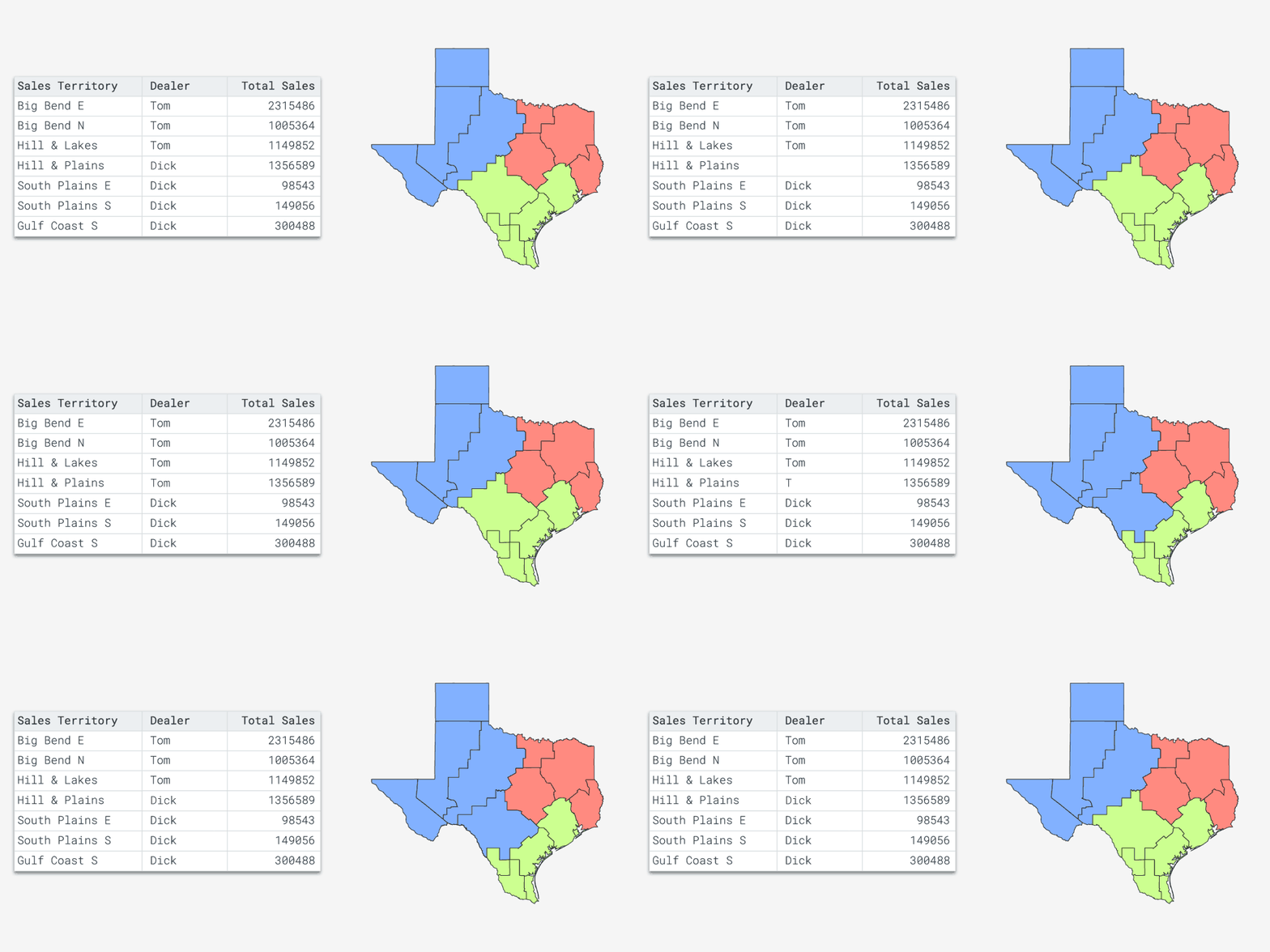
Each row is a feature on the map. So you can tell the GIS "colour every territory belonging to Tom red," and it obliges. Better still, if Tom later gains a territory, you don't touch the map; you just change that territory's dealer value to Tom, and the map updates itself.
The quantity map
Here each feature is colour-coded by a number: darker means more sales, lighter means fewer.
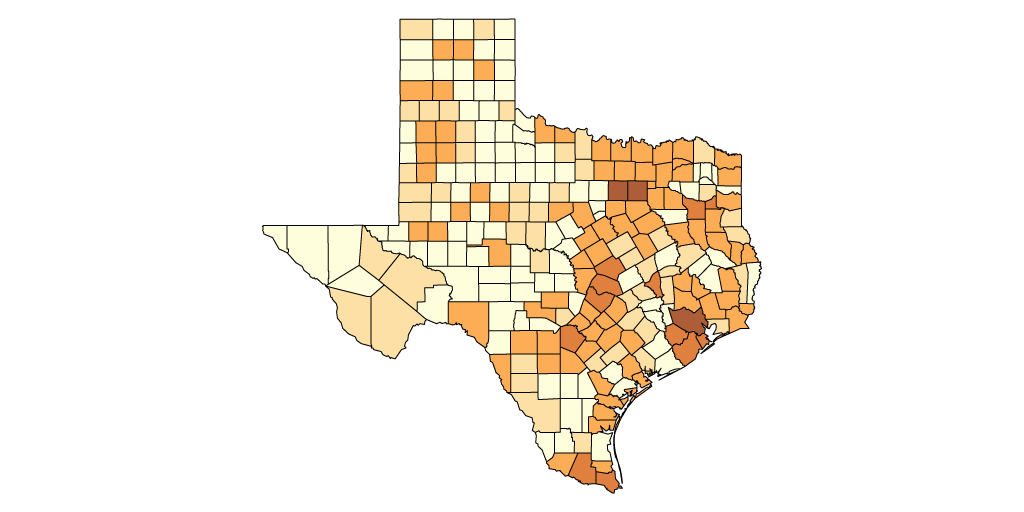
This is a quantity map, and if you're feeling nerdy you can call it a choropleth. It's sometimes wrongly called a heat map, though we'll see what a heat map actually is shortly. It's great for spotting patterns and trends, and is a staple of business analysis and demographic mapping. Like the category map, it's data-driven, but the rules are based on a number attribute.
One trap catches almost every beginner, so let's deal with it straight away:
A choropleth colours areas, which makes it tempting to map raw totals like "number of people." But raw totals often just show where more people live. To compare areas fairly, map a rate, percentage, density, or value per person.
Here's why it goes wrong. A choropleth invites the reader to compare areas by colour, so darker looks like "more of a problem." But a raw total is driven by how many people (or houses, or cars) are in each area in the first place. A district with twice the population will tend to have twice the burglaries, twice the coffee sales, twice of almost anything, not because it's special but because it's bigger. So a raw-count map mostly ends up drawing a picture of where the people are, with your actual subject buried underneath it.
Dividing by a sensible denominator (residents, households, area) strips that population effect out, leaving only the signal you actually care about. That's what a rate does:
- Bad: total number of burglaries by district. Better: burglaries per 1,000 residents.
- Bad: total population by county. Better: population density, or percentage change.
In the first example, the raw map answers "where do lots of burglaries happen?" (usually: wherever lots of people live). The rate map answers the far more useful question, "where is a resident most likely to be burgled?", which can point to completely different places.
We'll come back to this in the Common Mistakes chapter, because it's the single most common way a good-looking map ends up misleading people.
Quantity rules are a little more involved than categories. The legend shows a colour ramp, with each colour representing a number range:
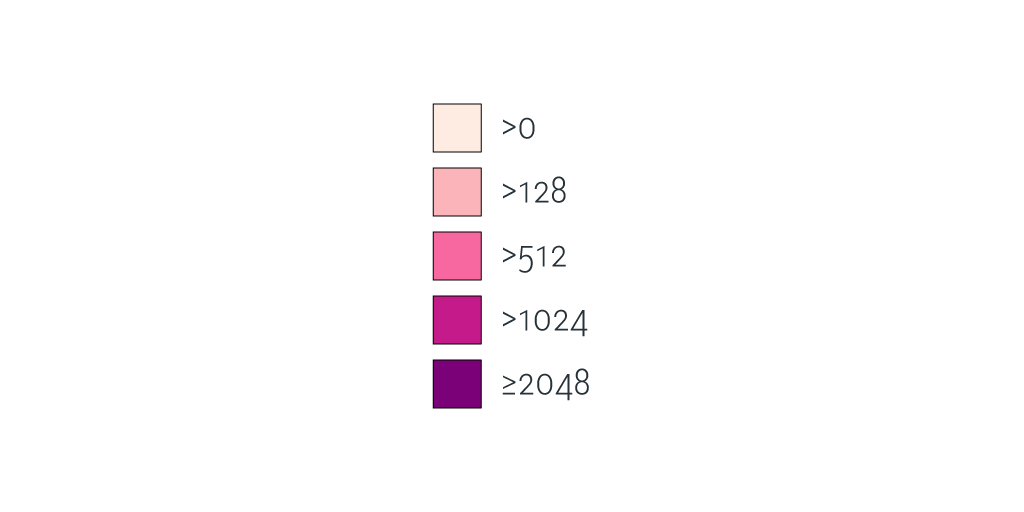
Each colour on the ramp is a class break. To define them you tell the GIS two things: how many class breaks you want, and the number range for each.
Manual: you key in each range yourself. Handy when your organisation already has standard ranges.

Equal interval: the total range is divided evenly by the number of class breaks.

Equal interval struggles with outliers or clustered data: 99 features valued 1 to 5 and one valued 50 would produce a map that's almost all one colour.
Quantiles: each class break is adjusted to hold the same number of features.

Quantiles produce the most visually balanced map (every colour is used equally often), but can mislead users who don't know how the data's been split.
Jenks (natural breaks): a clustering method that minimises variation within each class and maximises it between classes. In plain terms: it strikes a good balance between pretty and sensible. If your data doesn't fit neat equal intervals, Jenks or manual breaks are your best bet.
Head/tail breaks: for heavy-tailed distributions (power laws, lognormal). If you need this, you probably already know it; if not, safely ignore it.
The bubble map
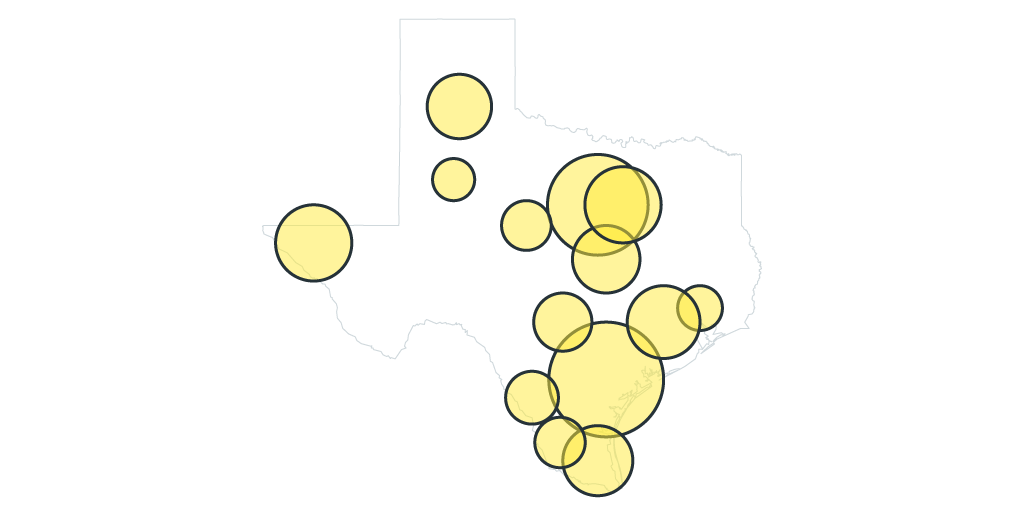
Also called a graduated marker map, a bubble map works just like a quantity map but varies bubble size rather than colour.
The bivariate map
So far each map has shown a single thing: one category, or one number. A bivariate map shows two at once, by encoding each variable with a different visual channel. It's a neat trick when two attributes only make sense together.
With points, the two channels are usually colour and size. Picture a map of your stores where colour shows customer satisfaction (red to green) and size shows revenue: a big red bubble (high revenue, low satisfaction) jumps out as a store worth a closer look, while a small green one (happy customers, modest revenue) tells a very different story. Neither variable alone would have picked those stores out; the combination does.
Mango can now build bivariate point styles directly, so you can drive a point layer's colour from one attribute and its size from another without any manual workarounds.
A word of caution: bivariate maps ask more of the reader, so they reward a clear legend and a bit of restraint. If two variables aren't genuinely telling a joint story, two separate maps are often kinder.
The heat map
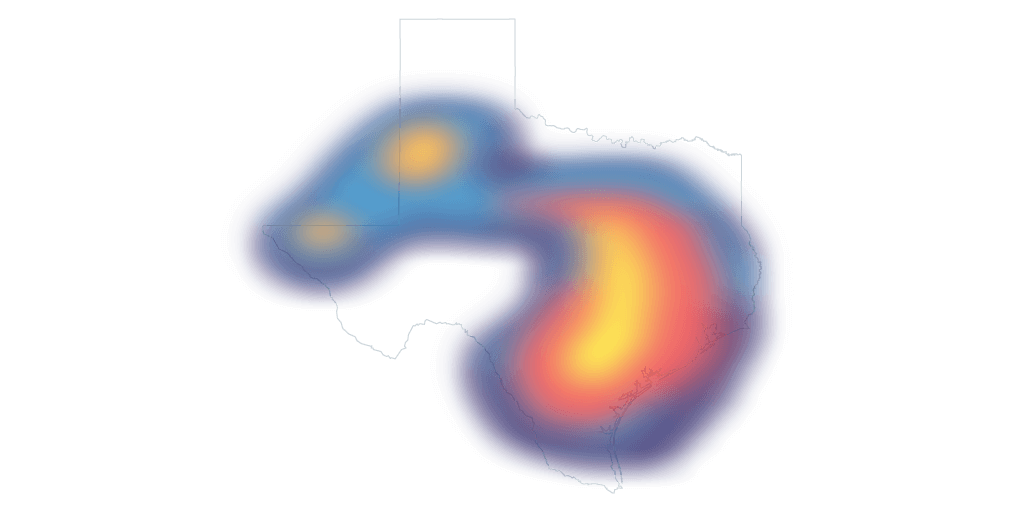
A heat map is for when point data is so dense you can't make visual sense of it. Heat maps are normally used with points.
The cluster map
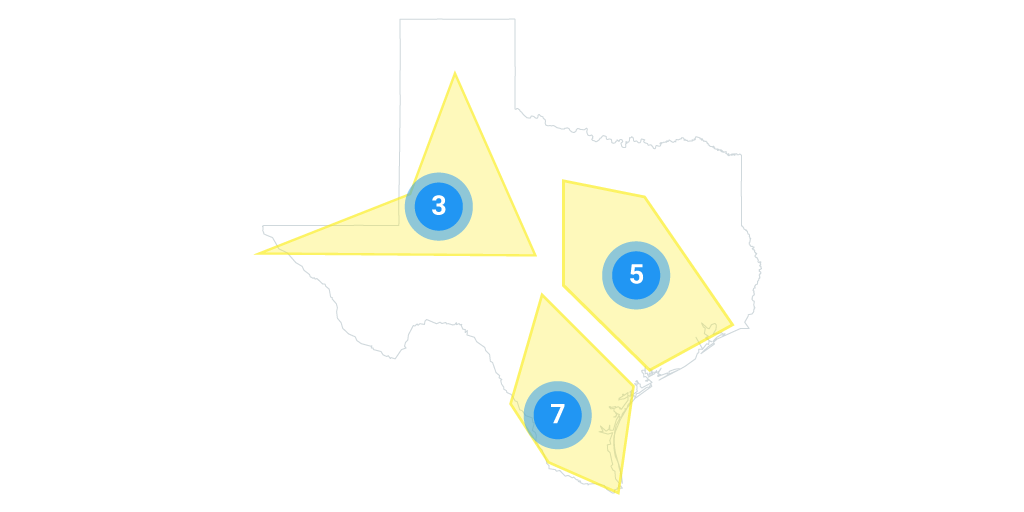
A cluster map solves the same problem as a heat map (too many points) but instead groups nearby points into a single marker, usually using colour, size, and a label to show how many points each cluster contains.
Choosing the right map type
With a handful of map types in your toolkit, the obvious question is: which one should I use? The annoying-but-true answer is "it depends on what you're trying to show", so start there, not with the map type.
Here's the same idea as a quick lookup, including a few types we haven't covered:
| What you want to show | Good map choice | Be careful of |
|---|---|---|
| Exact locations | Point map | Too many overlapping points |
| Lines or routes | Line map | Line thickness implying false importance |
| Values by area | Choropleth | Raw counts instead of rates |
| Intensity or concentration | Heat map | Hiding the individual records |
| Quantity at locations | Proportional (bubble) symbols | Very large symbols covering the map |
| Categories | Categorical colours | Too many categories to tell apart |
| Change over time | Time slider or small multiples | Animations that impress but obscure the point |
| Two related variables | Bivariate map | Harder for beginners to read |
| Distribution across areas | Dot density map | Dots are estimates, not exact addresses |
Colour and accessibility
Colour is the most powerful tool on a map, and the easiest to misuse. A few rules go a long way:
- Use colour ramps that have a logical order (light to dark for low to high).
- Avoid red-green-only schemes; they're invisible to many colour-blind readers.
- Don't use too many classes; five to seven colours is usually the sweet spot.
- Use contrast carefully, and make sure labels stay legible.
- Don't let colour carry all the meaning; pair it with labels, size, or shape so the map still reads if the colour is lost.
Cartography basics
Finally, a handful of design habits that separate a clear map from a cluttered one:
- Less is usually more: every layer you add competes for attention.
- Make the most important layer visually obvious.
- Treat the basemap as context, not competition, and dial it back so your data stands out.
- Avoid chartjunk: decoration that adds no information.
- Labels should help, not clutter; if in doubt, leave it out.
- The title should say what the map actually shows, and legend labels should make sense to someone who isn't a GIS expert.
Stacking layers
A GIS map is often made of multiple layers. The map types above can be stacked into one map, and each map in the stack is a layer you can toggle on and off, or move up and down.
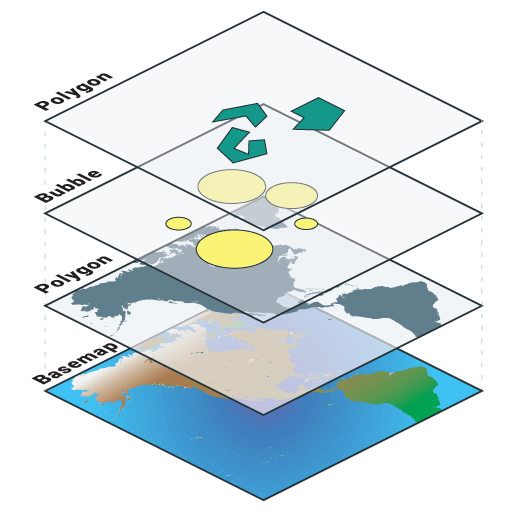
For example, one map might combine a layer of dealer territory boundaries, a layer showing sales by county, and a point layer of dealer premises, with the reader turning each on or off as needed. Web maps also commonly use a base map (like the street or satellite maps you know from Google Maps) to give your layers real-world context.
Map interactivity
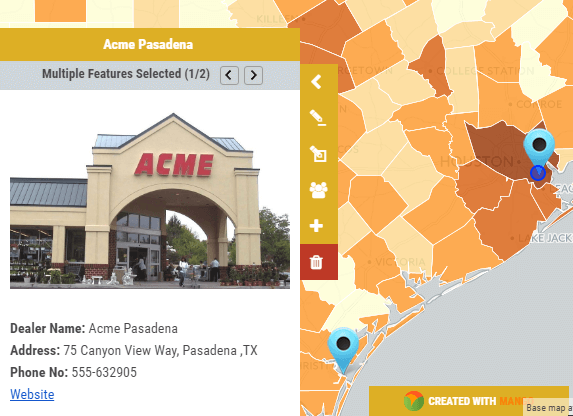
Layers are only half the story. What separates a GIS map from a printed one is interactivity. The basics work like Google Maps: pan and zoom to an area of interest, then click a feature to see more about it. In GIS this is called an identify.
Query tools
A query (or selection) tool filters a dataset by criteria you define (for example, "show me every county where we made more than $50,000 last year") and highlights the matching features. Query tools future-proof a map by letting readers ask questions the map-maker never anticipated.
Desktop GIS query tools are powerful but have a steep learning curve. Web GIS query tools are usually more limited but far more intuitive, which makes them suitable for sharing with people who have no GIS experience. That trade-off holds across most desktop-vs-web features: desktop suits the power user with time to invest; web suits sharing maps with a larger, non-specialist audience.
Search
Maps can be searched by address or by values in a layer's attributes. Search is an area where web tools tend to outshine the desktop, offering Google-style fuzzy search across multiple layers, ranked by match quality. Desktop search is often clunkier, making you pick a layer and column first.
Measuring and distance
Scale bars tell you what on-screen distances mean in the real world, and measuring tools let you measure paths or areas directly on the map.
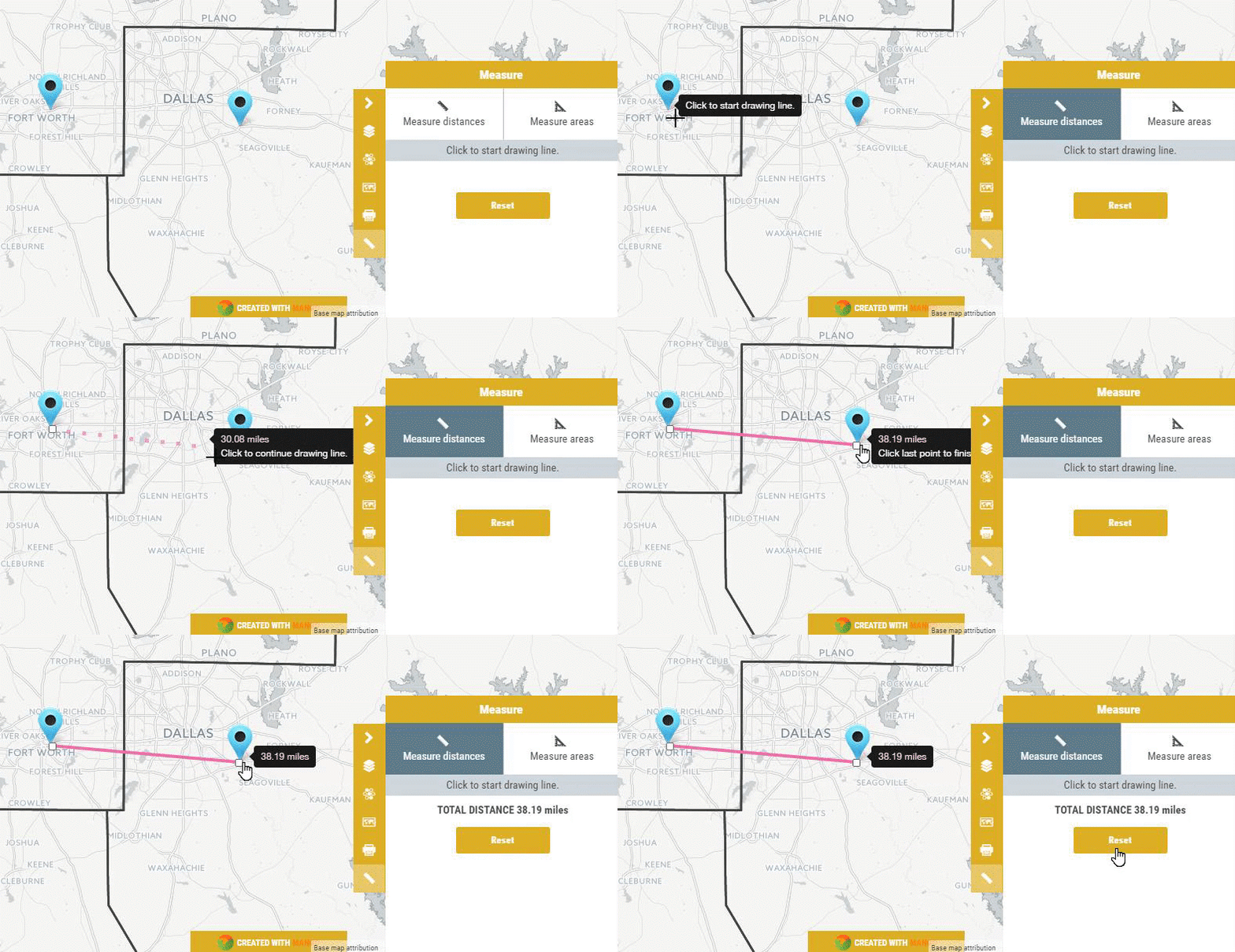
That's just the tip of the iceberg; most GIS systems include far more, and niche products add tools for complex geometry and spatial-relationship calculations. We'll go deeper later.
The anatomy of a GIS map
Every GIS is different, but most share some common DNA:
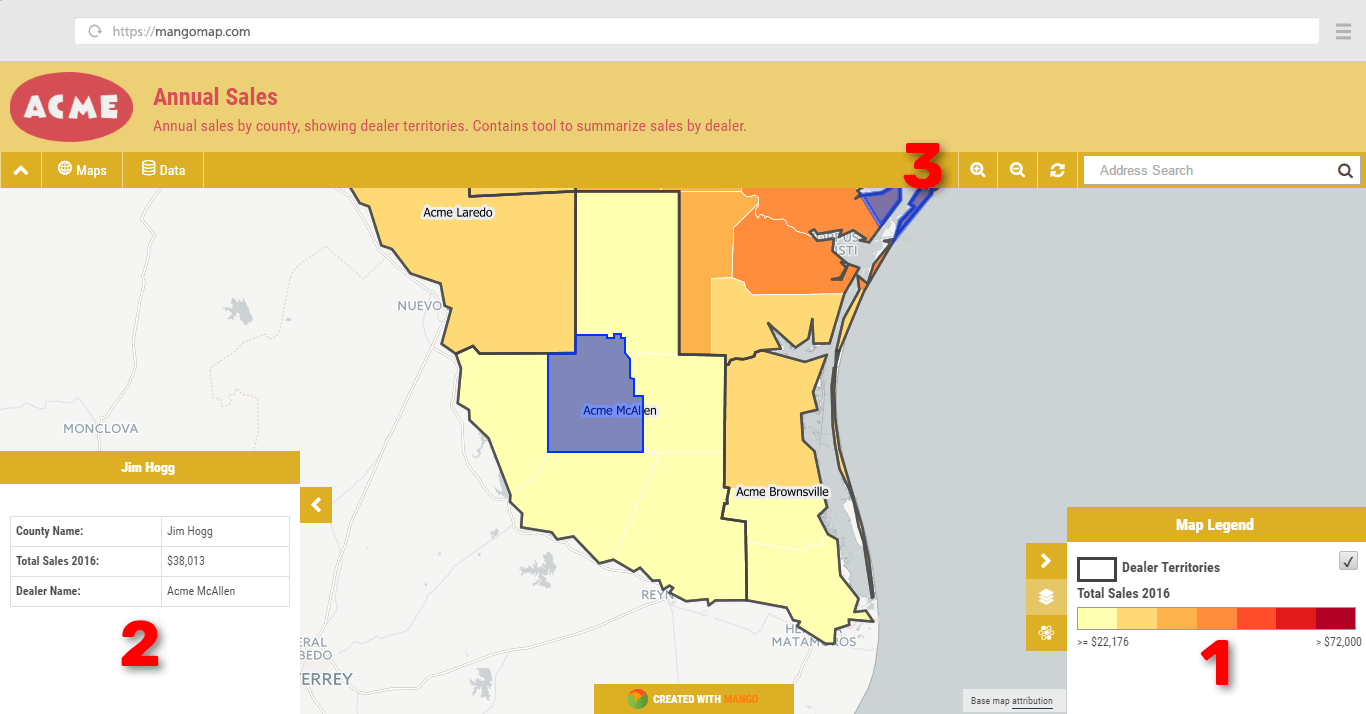
Legend: where you make sense of what you're seeing. It lists the layers and shows the symbols and class breaks used to style each one.
Info window: a popup or sidebar showing supplemental information, such as the attributes of a feature you've just identified.
Toolbar: on the top or sides of the interface, large and comprehensive on the desktop, smaller and more focused on the web.
Now that we know what a GIS is and what it can do, the next step is understanding how one is made, starting with the data.
Ready to make your first map?
Everything in this guide, put to work: upload your data and publish an interactive map in an afternoon. No credit card required.