Chapter 3 of 8
GIS Data
Vector vs raster, shapefiles and the other formats, and how to source and prepare data.
Now we know what a GIS is and what it can do, the next step is understanding how one is made, and that starts with a crash course in GIS data.
If you thought "GIS" was a vague term, you haven't seen anything yet: there's a dizzying array of formats for storing geographic data. The fundamentals, though, are simple. There are two main kinds of GIS data: vector and raster.
Vector data
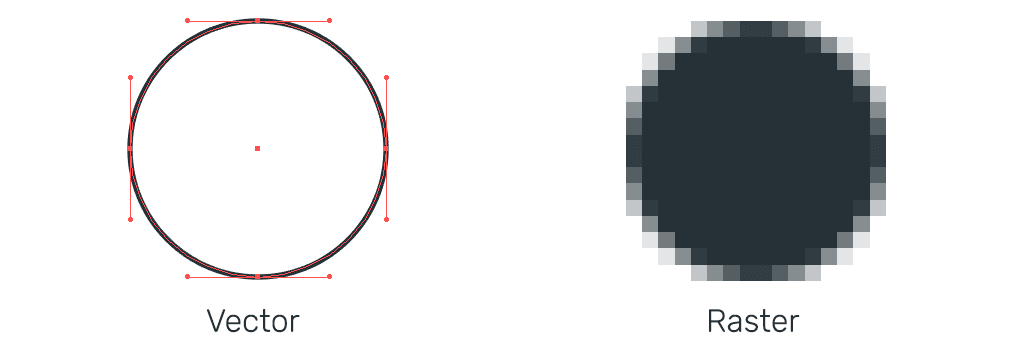
Think of vector data as instructions for drawing. Picture a spreadsheet with your usual columns plus one extra column called geometry. That column holds one or more coordinates describing how to draw the point, line, or polygon that represents each feature on the face of the earth.
Raster data
If vector data is abstract, raster is literal. Raster data is a bitmap image (a TIFF or JPEG), typically used for satellite imagery, aerial photography, elevation models, and topographic maps.
Introducing the shapefile
The shapefile is the most common format in GIS: a vector format almost every system can read. The name is a little deceptive, because a shapefile is actually made of at least four parts. You don't need to memorise these, but a quick tour helps you understand how GIS data is structured in general:
.shp: the geometry of each feature..dbf: a dBase file of the attribute data; it's much like a spreadsheet sheet and can even be opened in Excel..shx: the spatial index, which helps a GIS find features in the.shpquickly..prj: the projection file, describing the data's projection and coordinate system.
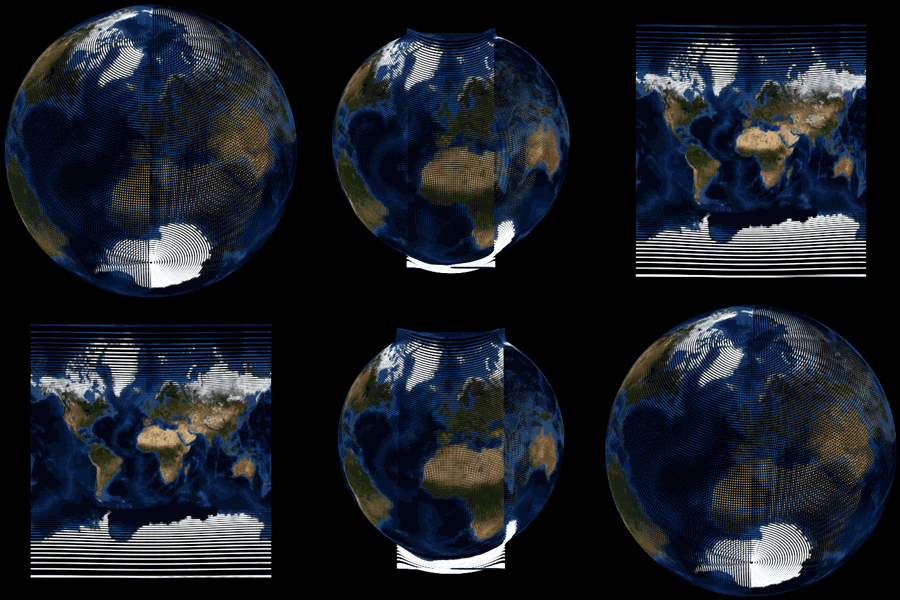
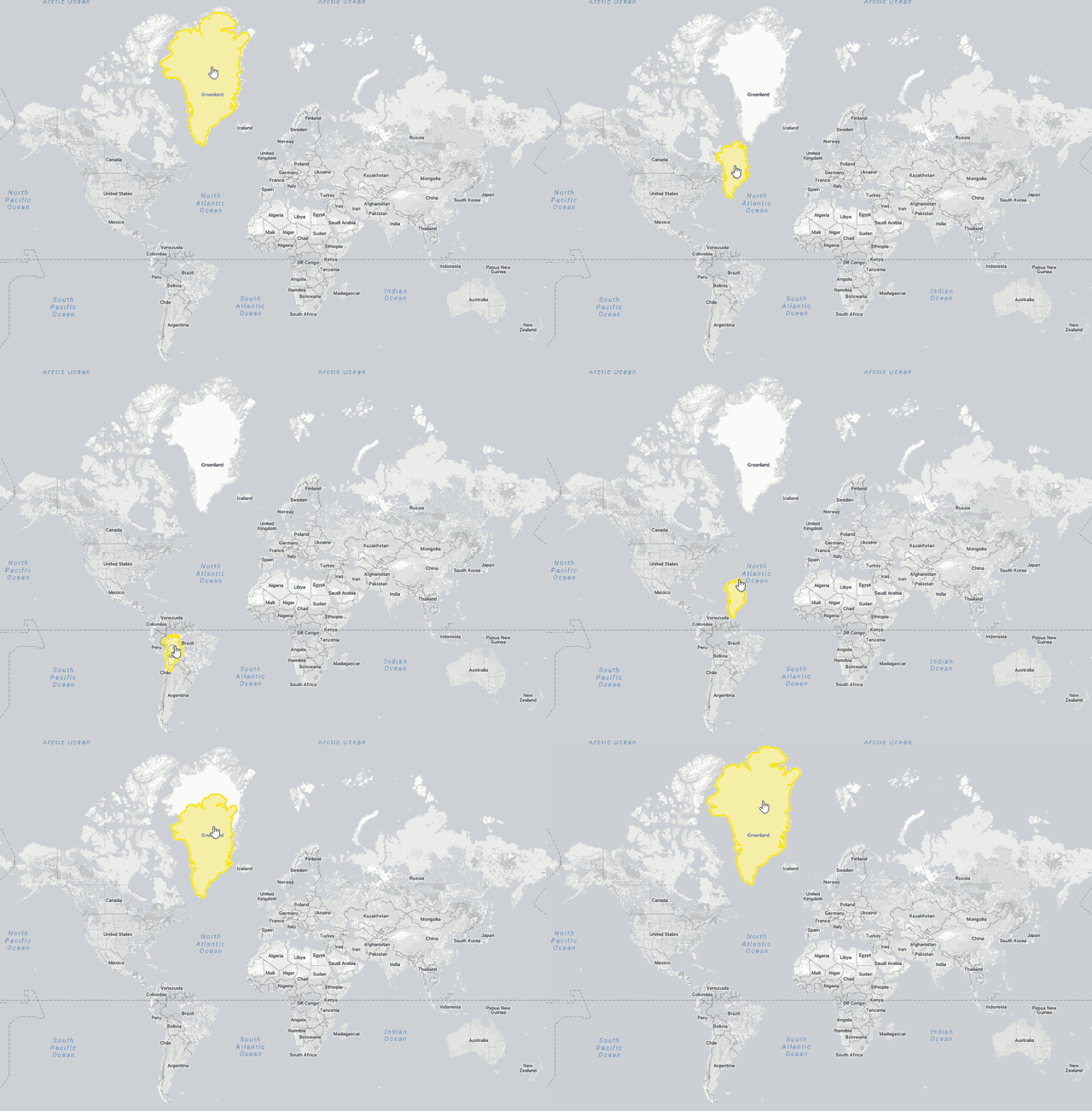
You'll also bump into EPSG codes, short numeric IDs for coordinate systems. Commit two to memory:
- EPSG:4326 (WGS84): the familiar GPS-style latitude/longitude, measured in degrees.
- EPSG:3857 (Web Mercator): the projection used by most "slippy" web maps.
WGS84 latitude/longitude is a safe default for sharing simple location data, especially points. But it isn't always the right choice for measuring: distances and areas calculated straight from raw lat/long can be well off. When you need accurate measurement, reproject to an appropriate local projected coordinate system first.
One catch with the shapefile: it can only contain one geometry type, so every feature is a point, a line, or a polygon, never a mix. And while shapefiles are still everywhere (so you need to recognise them), let's be honest about what they are: an old format with awkward limits. They arrive as several files that must travel together, field names are capped at ten characters, there's a file-size ceiling, and if one of the sidecar files goes missing the whole dataset can break.
If you're starting fresh and your software supports it, GeoPackage (a single .gpkg file) is
often a better default. It keeps everything in one file, supports long field names and multiple
layers, and sidesteps most of the old shapefile headaches.
The formats you'll actually meet
There's a dizzying array of formats, but as a beginner you only need to recognise a handful. Here's the short list, in plain English:
| Format | In plain English | Good for |
|---|---|---|
| CSV | A spreadsheet with coordinates or addresses | Simple point maps |
| GeoJSON | A web-friendly spatial data file | Small to medium web-map layers |
| Shapefile | Very common older GIS format, made of several files | Legacy data exchange |
| GeoPackage | Modern single-file GIS database | General-purpose storage and sharing |
| GeoTIFF | Raster data with its location baked in | Imagery, elevation, scanned maps |
| Vector tiles | Pre-cut web-map data | Fast interactive web maps |
A quick word on the two you'll handle most as a beginner. CSV is just a plain text file with columns separated by commas, plus two extra columns for x/y (or lat/long); almost anything can read it, but one stray comma can break it. GeoJSON is JSON (the format web apps love) with geometry attached, which is why it's become the lingua franca of web maps and APIs.
You may also meet KML (Google Earth's default, which also carries Google Earth styling), TAB (MapInfo's shapefile equivalent), and the file geodatabase (a folder-based store popular with advanced Esri users). You don't need to master them to get started.
Sourcing GIS data
Sometimes you'll have all the data you need up front. Often you'll need to source and prepare it from a third party, for instance taking a spreadsheet of sales by county and joining it to county map data.
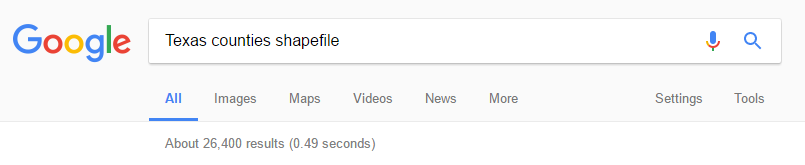
Most useful map data is freely available; the catch is that there's no single authoritative source. A quick web search still works well (try the dataset name followed by "shapefile" or "GeoJSON", e.g. "Texas counties shapefile"), but it helps to know the go-to places rather than trusting search alone.
Here's a starter set of beginner-friendly sources:
| Source | Good for | Notes |
|---|---|---|
| Natural Earth | Countries, boundaries, populated places, physical geography | Great global starter data |
| OpenStreetMap | Roads, buildings, amenities, paths, points of interest | Check the ODbL licence obligations |
| Geofabrik | Downloadable OpenStreetMap extracts | Handy for country or region extracts |
| Overpass Turbo | Querying specific OpenStreetMap features | Powerful, but more technical |
| Government open-data portals | Boundaries, census, transport, planning, environment | Often authoritative; quality varies |
| Local council / city portals | Parcels, zoning, assets, local services | Great for local projects |
| Census agencies | Population and demographic data | Usually needs joining to boundaries |
| HDX | Humanitarian and crisis-related datasets | Useful for development and disaster contexts |
| Satellite data portals | Imagery and environmental data | Often more advanced |
Often the only way to really know what's in a dataset is to download it and open it in a desktop GIS (more on those next). And if you still can't find what you need, email whoever might hold it. After California's forests? The forestry department is a good bet.
One important caveat: "open data" does not always mean "do whatever you want." Check whether the licence allows commercial use, redistribution, and modification, and whether attribution is required. When in doubt, credit the source.
Is this dataset any good?
Before you trust (let alone publish) a dataset, run through a quick checklist:
- Who created it, and can you trust them?
- When was it last updated?
- What area does it actually cover?
- Is it complete, or are there gaps?
- Is the location accuracy good enough for your use?
- Are the attributes clear and well-labelled?
- Is the licence suitable, and does it need attribution?
- Are there duplicates or missing values?
- Does the CRS look correct?
None of these takes long, and any one of them can save you from building a map on bad data.
Preparing GIS data
Later in the guide we'll walk through the exact steps in a desktop GIS. For now, here are the concepts behind the most common preparation tasks.
Table joins
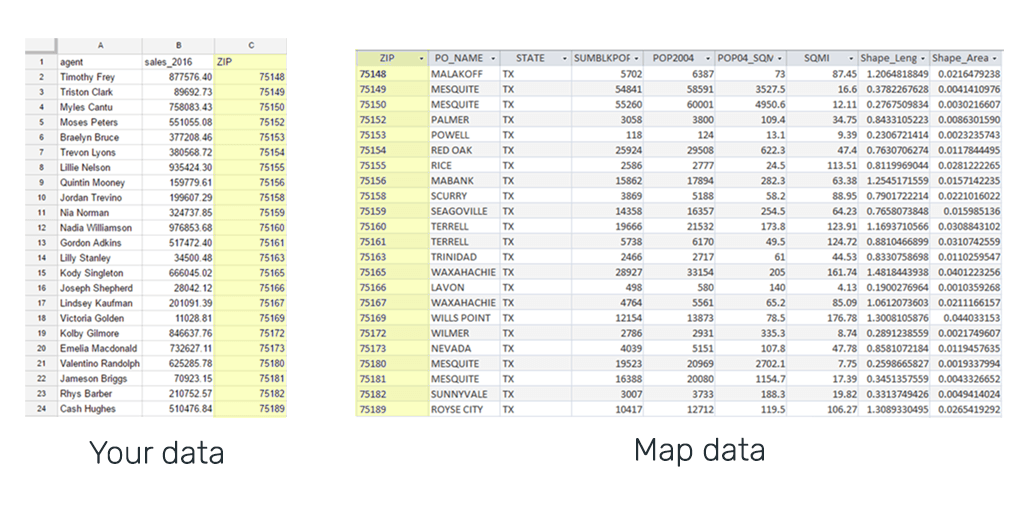
Say you have a spreadsheet of sales by zip code and want a quantity map. You'll need zip-code map data, then a join that merges your spreadsheet onto it.
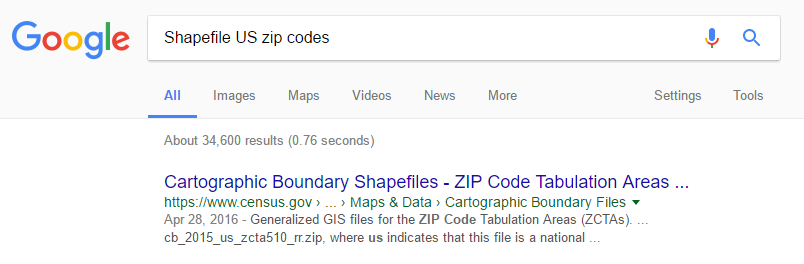
A table join works by picking a column that both datasets share (the zip code) and matching records, appending your spreadsheet's columns onto the map data's attributes.
Spatial joins
A normal table join matches records using a shared value: a zip code, a customer ID, a parcel number. A spatial join matches records using location instead. For example, you can take a list of customer points and join each one to the sales-territory polygon it happens to fall inside, then count how many customers fall in each territory. No shared ID needed; the geography does the matching. It's one of the things a GIS can do that a spreadsheet simply can't.
Geocoding addresses
Another common need is mapping addresses. Turning an address into a coordinate is called geocoding, and most desktop GIS offer it: the address is sent to a geocoding service, which returns a point for each record, with your spreadsheet data carried along as attributes.
It sounds simple, but there are traps. Batch geocoding can hit free-tier limits, return wrong matches for ambiguous addresses, and raise privacy concerns when the addresses are personal. Always eyeball a sample of the results before trusting the whole file.
Filtering a dataset
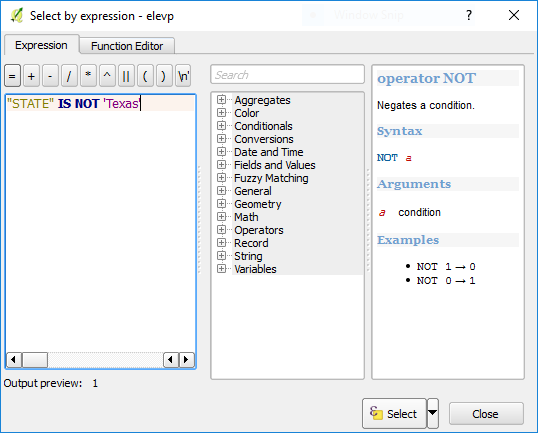
Third-party data often contains far more than you need, say every county in the country when you
only want Texas. You filter by selecting features with an expression, then deleting the rest. In
QGIS, "STATE" IS NOT 'Texas' selects every county whose STATE isn't Texas; hit delete and
they're gone.
These are just the concepts; we'll do them for real in QGIS later. Next, let's pick the right GIS software for the job.
Ready to make your first map?
Everything in this guide, put to work: upload your data and publish an interactive map in an afternoon. No credit card required.